

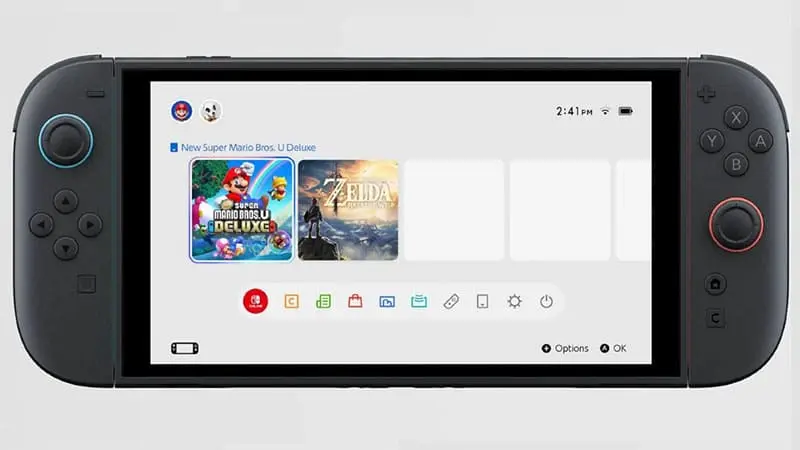
Knowing how to free up space on Nintendo Switch 2 can save you from deleting the wrong files. Large games, updates, DLC and gameplay videos can fill the console faster than expected. Fortunately, you can remove installed games without losing your progress.
Nintendo Switch 2 keeps save data separate from game software. This means you can delete a game, download it again later and continue from the same save file. However, you should avoid the separate Delete Save Data menu unless you truly want to erase your progress.
Check What Is Using Your Storage
Before removing anything, check how much free space remains on the console.
Open System Settings from the HOME Menu, then select Data Management. This section shows the available space in the system memory. It also displays the remaining capacity on an inserted microSD Express card.
The software list helps you identify the largest games on the system. In most cases, deleting one large game creates more space than removing dozens of screenshots.
Focus on games you have finished or do not plan to play soon. You can always download them again through your Nintendo Account.
Use Quick Delete to Remove Large Games
Quick Delete is one of the easiest ways to free up space on Nintendo Switch 2.
Go to:
System Settings > Data Management > Quick Delete
The console will display installed software and the amount of storage each game uses. Select one or more titles, then confirm the deletion.
Deleting software does not erase its save data. Your progress remains stored in the console’s system memory. When you reinstall the game, you can continue from where you stopped.
However, the console may need to download the game’s updates and DLC again. Nintendo does not allow update data or DLC to be removed separately from the main software.
You can also delete a single game from the HOME Menu. Highlight the game, press the + or – Button and open its software management options.
Move Games to a microSD Express Card
Deleting games is not your only option. You can also move software data from the internal storage to a microSD Express card.
Open:
System Settings > Data Management > Move System / microSD Express Card Data
Choose the direction of the transfer, select the games and confirm the move. This can create space in the system memory without forcing you to download the software again.
Nintendo Switch 2 requires a microSD Express card for storing downloaded games. A standard microSD card from the original Switch cannot be used for Switch 2 game software.
A microSD Express card can hold downloaded games, updates, DLC, screenshots and gameplay videos. Save data is the main exception. It remains in the console’s internal memory.
Before buying a card, make sure the packaging clearly includes the microSD Express label. A similar-looking standard card will not provide the same support.
Delete Old Screenshots and Gameplay Videos
Screenshots usually take up little space. Videos are larger and can build up quickly if you record gameplay often.
Open the Album from the HOME Menu to review your captures. From there, you can delete individual screenshots and videos or select several files at once.
You can also open:
System Settings > Data Management > Manage Screenshots and Videos
This menu allows you to manage captures stored in the system memory or on a microSD Express card.
Consider copying important screenshots to another device before removing them. Captures can be transferred to a supported storage location or computer. Once deleted from the console, they may not be recoverable.
Clearing old gameplay clips will not create as much space as deleting a large game. Still, it can help when you only need enough room for a smaller update.
Do Not Delete Save Data by Mistake
Nintendo Switch 2 includes a separate menu for permanently deleting game progress.
The menu is located under:
System Settings > Data Management > Delete Save Data
Do not use this option as a normal storage-cleaning method.
Deleting installed software and deleting save data are completely different actions. Delete Software removes the game files but keeps your progress. Delete Save Data can permanently erase your game progress for a selected user or every user on the console.
Save files are usually much smaller than installed games. Deleting them rarely creates enough space to justify the risk.
Nintendo Switch Online members may have cloud backups for supported games. However, not every title supports Save Data Cloud. You should never assume a backup exists without checking first.
Physical Games Can Still Use Storage Space
Physical games do not always run entirely from the game card.
Updates, DLC and additional content may still use the console’s storage. Some Game-Key Card releases also require players to download the main game before playing.
As a result, buying a physical copy does not always prevent storage problems. Check the game box or Nintendo eShop listing to see whether an additional download is required.
This is especially important for larger games. A physical package can still lead to a significant download.
The Best Order for Clearing Space
Start by checking the software list in Data Management. Remove the largest games that you are no longer playing.
Next, move frequently used games to a microSD Express card. This keeps them installed while creating more room in the system memory.
After that, clear unnecessary gameplay videos and duplicate screenshots. These files are not usually the main cause of storage problems, but removing them can provide some extra space.
Most importantly, stay away from the Delete Save Data menu unless you intend to restart a game permanently. Installed software can be downloaded again. A lost 100-hour save file is far less cooperative.

