

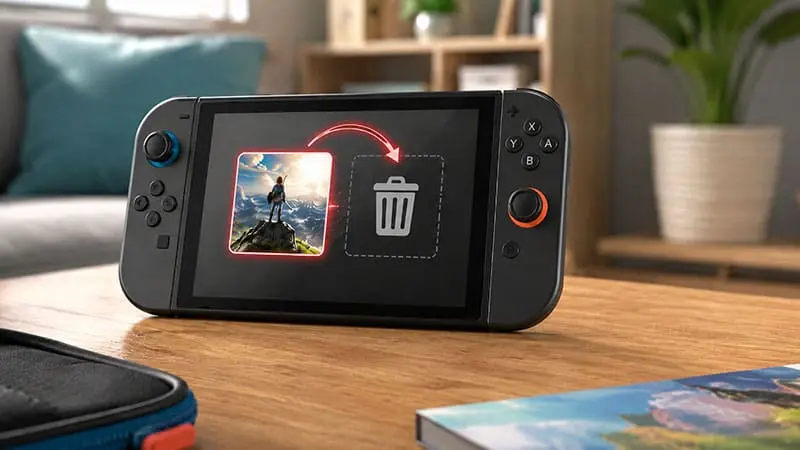
Nintendo Switch 2 storage can fill up quickly, especially once large digital games, updates and DLC packs begin competing for space. Choosing to delete a Switch 2 game may seem like the easiest solution, but the confirmation screen can still create an uncomfortable question: will your progress disappear with the game?
Fortunately, Nintendo Switch 2 treats installed software and save data as two separate things. However, there is one similarly named option that can permanently remove your progress, so it is important to know exactly which menu you are using.
Does Deleting a Switch 2 Game Delete Save Data?
Deleting a Nintendo Switch 2 game normally removes only the software data. Your save file remains stored in the console’s system memory.
This means you can delete a game to free up storage, download or install it again later, and continue from your existing progress. The game may need to download updates or DLC again, but its save data should still be available when you launch it with the same user profile.
Deleting a Switch 2 game is therefore not the same as deleting its save data.
The dangerous option is Delete Save Data, which appears in a separate section of the system settings. Selecting that option removes the actual progress file rather than the game installation.
Where Is Switch 2 Save Data Stored?
Nintendo Switch 2 stores save data in the console’s internal system memory.
Save files are not stored on a microSD Express card, even when the game itself is installed there. They also do not move to the game card when you play a physical release.
The basic arrangement looks like this:
- Game software can be stored in system memory or on a microSD Express card.
- Updates and downloadable content can also use those storage locations.
- Save data remains in the console’s system memory.
Because of this separation, formatting or replacing a microSD Express card should not erase your game progress. You may need to redownload the games that were installed on the card, but the local save data stays on the console.
Physical and digital games generally follow the same save system. A physical cartridge contains the game software, while your progress is still kept on the Switch 2 itself.
Delete Software vs Archive Software
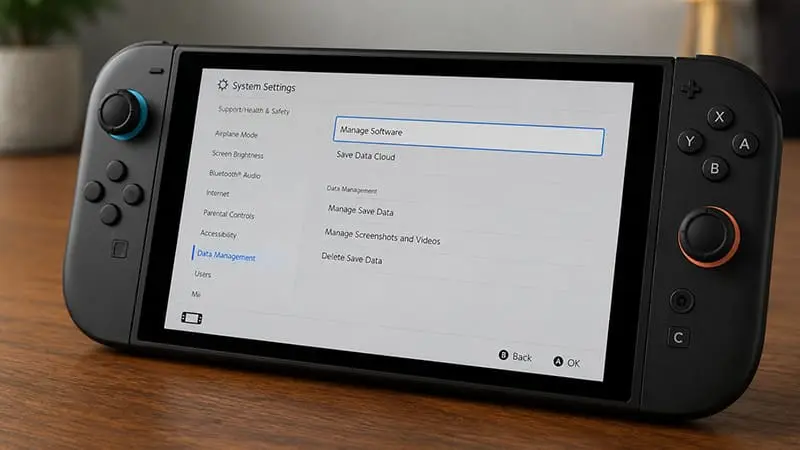
Nintendo Switch 2 provides two common ways to remove installed game data: Delete Software and Archive Software.
Both options free up storage space without removing the game’s save data. The main difference is what happens to the game icon on the HOME Menu.
Delete Software
Delete Software removes the installed game data and its HOME Menu icon. Digital games can be downloaded again through the Nintendo eShop using the Nintendo Account that purchased them.
Your save data remains on the system unless you separately delete it.
Archive Software
Archive Software also removes the installed game data, but it leaves the game icon on the HOME Menu. This gives you a quick shortcut for downloading the title again later.
Archiving can be useful when you regularly rotate between games and do not want to search through your purchase history each time.
Neither option should erase your progress.
How to Delete a Game Without Losing Progress
You can remove a game safely through the HOME Menu:
- Highlight the game you want to remove.
- Press the + or – button.
- Select Data Management.
- Choose Archive Software or Delete Software.
- Confirm the removal.
Do not open System Settings → Data Management → Delete Save Data unless you intentionally want to erase the game’s progress.
The wording can look similar at a glance, but the results are very different. Removing software creates storage space. Removing save data deletes the file that contains your progress.
What Happens When You Reinstall the Game?
After you delete a Switch 2 game, reinstalling it should allow the console to detect the save data already stored in system memory.
You may need to download the latest update before the game will launch. Any DLC used by the save file may also need to be installed again.
The correct user profile matters as well. Save data is usually connected to the profile that created it. If several people use the same console, each player may have a separate save file for the same game.
For a physical game, the process is similar. Insert the game card, install any required updates and launch it with the original user profile. The console should then load the existing progress.
You do not need to start again simply because the game was previously deleted.
When Can Save Data Actually Be Lost?
Normal software deletion is safe, but several other actions can remove or endanger save files.
Manually deleting the save file
The most obvious risk is using Delete Save Data in the system settings. Nintendo warns that deleted save data cannot normally be recovered.
The menu allows you to remove data for one user or delete all save data associated with a game. Read each confirmation screen carefully before continuing.
Deleting a user profile
Removing a user from the console can also delete the save data linked to that profile. This is especially important on shared systems where several people play under separate accounts.
Deleting the game itself is safe. Deleting the person who owns the save file is not.
Fully initializing the console
A complete system initialization or factory reset can remove data stored in system memory, including save files. Some reset options may preserve selected data, while a full initialization is designed to erase the console.
Always check what a reset option removes before confirming it.
Console loss or hardware failure
Local save data can also become unavailable if the console is lost, badly damaged or unable to access its system memory. A cloud backup may help in these situations, provided the game supports the feature and a recent backup exists.
Should You Back Up Save Data Before Deleting a Game?
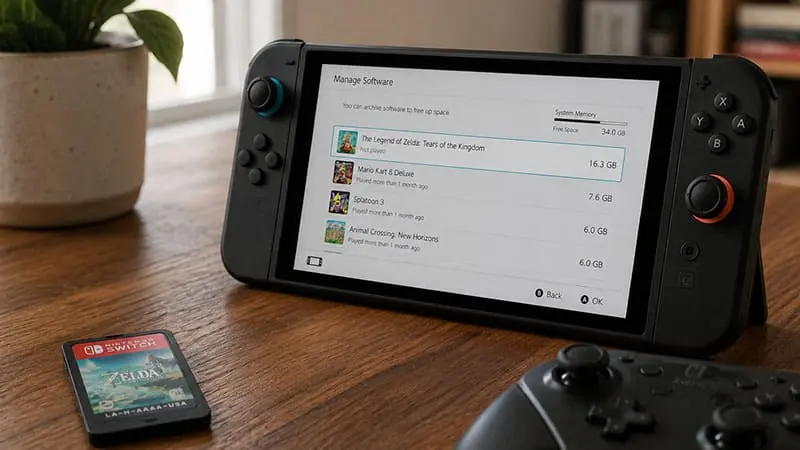
You do not need to create a cloud backup every time you delete or archive a game. Deleting a Switch 2 game does not normally remove its local save data.
However, Save Data Cloud still provides useful protection against console damage, theft or replacement.
Nintendo Switch Online members can back up progress for supported games. Not every title supports cloud saves, so it is worth checking the game’s Nintendo eShop page or its Save Data Cloud menu.
A backup is an extra layer of protection rather than a requirement for uninstalling software.
You should also be careful when downloading older cloud data. Restoring an outdated backup may replace newer local progress, depending on the game and the available sync options.
Are There Any Special Exceptions?
Some games manage progress differently from a standard user-based save file.
Animal Crossing: New Horizons is the best-known example. Its island data is shared across the console and uses dedicated transfer and backup systems. Moving an island to another console requires the Island Transfer Tool, while island recovery depends on the separate backup feature being enabled.
Deleting the Animal Crossing software should not automatically erase the island, but transferring or recovering that data follows different rules from most other games.
Other titles may also lack Save Data Cloud support or use special online account systems. Before resetting a console or moving to new hardware, check the support information for the specific game.
Final Answer
You do not normally lose save data when deleting a Nintendo Switch 2 game. Delete Software and Archive Software remove the installed game files while leaving your progress in the console’s system memory.
Your save can still be lost if you manually select Delete Save Data, remove the associated user profile, fully initialize the console or lose access to the system without a usable backup.
As long as you remove only the software and avoid the save-data menu, you can reinstall the game later and continue with the same user profile.

